Create a consumer account for a customer who tracks their own fleet. As the owner of a consumer account, you can also create a sub-consumer, for example for a subsidiary. In the same form you decide how the new account's owner signs in.
¶ Before you start
- You need the Add Consumer Accounts permission. The built-in Owner role has it, in dealer and consumer accounts.
- Restrict Sub Accounts must be off for your own account.
- Have the company's name, address and, for a registered business, its registration number.
- Decide how the owner will sign in: a login you create, their existing login, or an invitation link. See Ways to give an owner or user access.
¶ Open the new consumer form
-
In the side menu, select Accounts > Consumers.
The Consumers list opens. -
Select Add Consumer, marked 1.
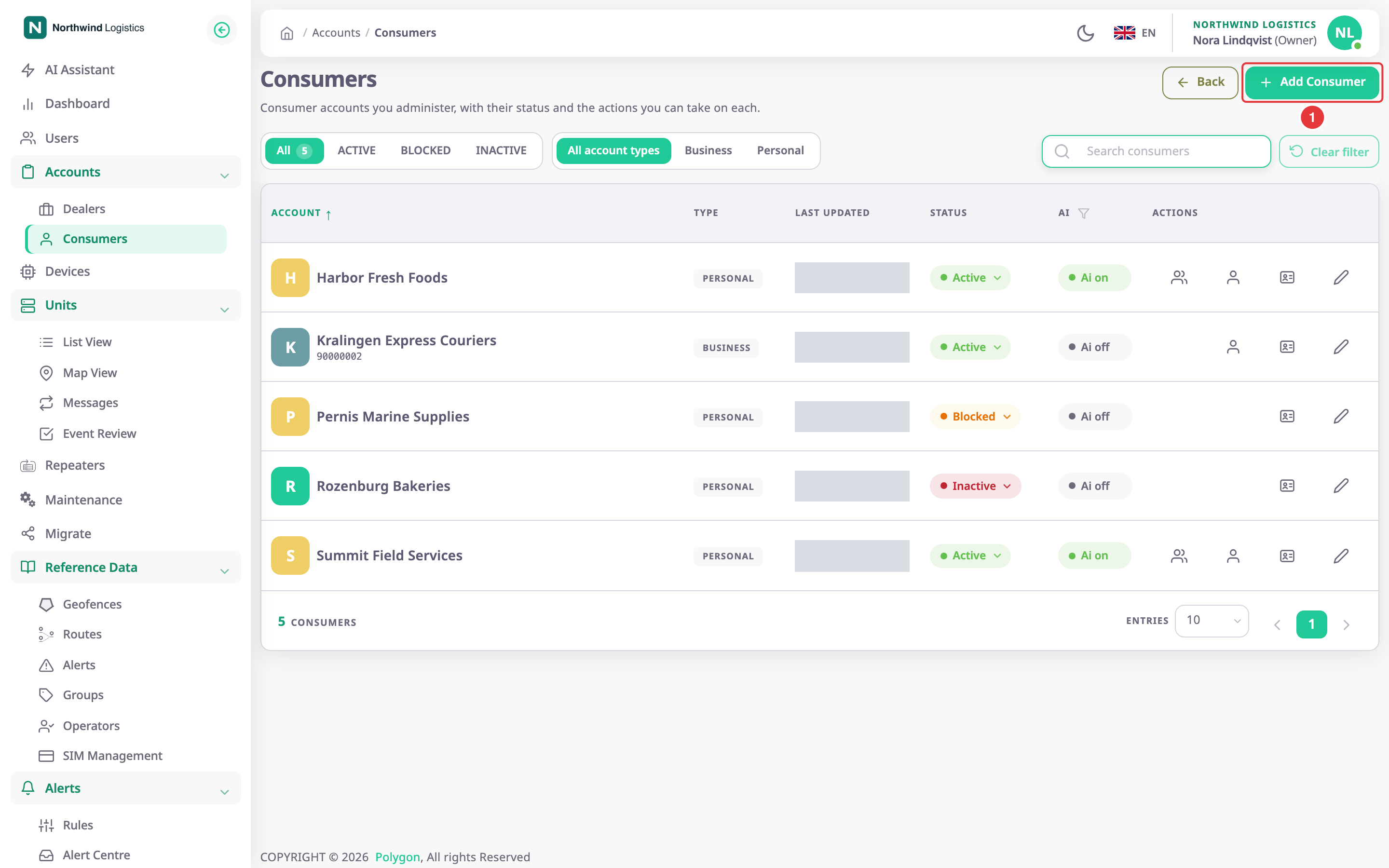
The Add New Consumer Account form opens.
¶ Fill in identity and billing
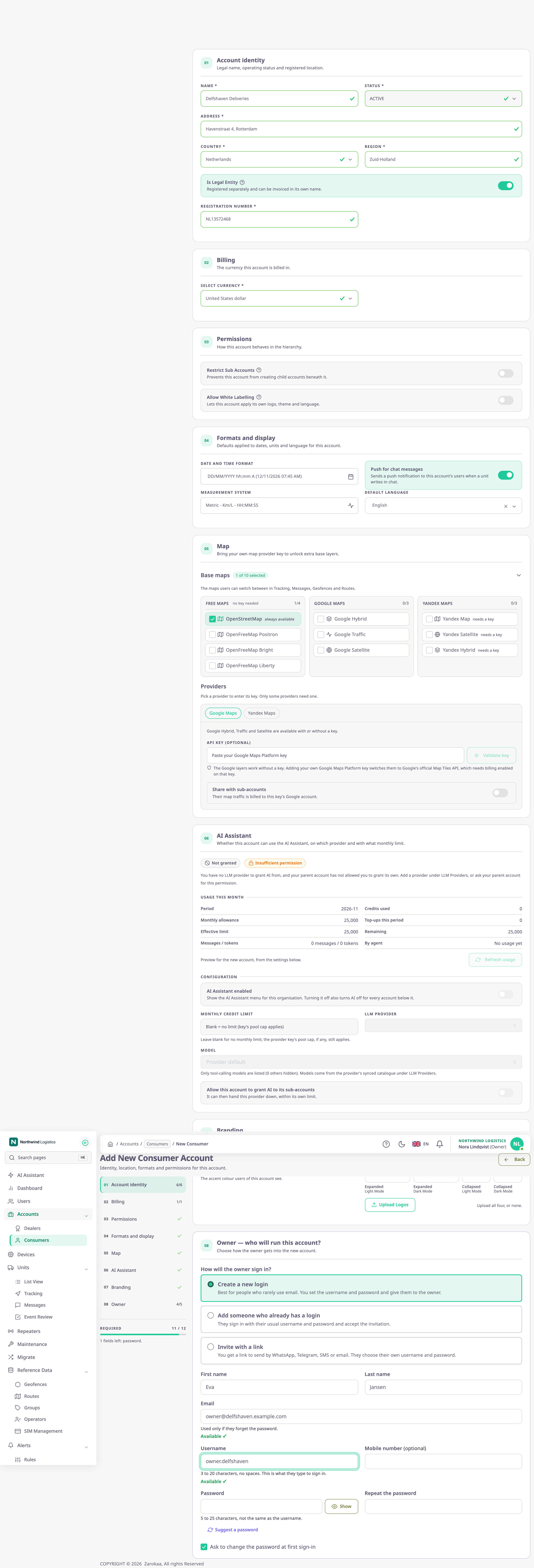
- In Name, enter the company name, for example Delfshaven Deliveries.
- In Address, enter the postal address.
- In Country, choose the country.
- In Region, enter the state, province or region.
- If the company is a registered business, in Registration Number, enter its number. Otherwise turn off Is Legal Entity above it.
- In the Billing section, in Select Currency, choose the billing currency.
¶ Choose permissions
- Optional: turn on Restrict Sub Accounts if the customer must not create sub-consumers.
- Optional: turn on Allow White Labelling if the customer may use its own branding. It shows only if your account may white-label.
- Optional: change Date and Time Format and Measurement System to the customer's local formats.
Optional: in the Map section, tick the base maps the account offers, and enter a map provider key if a map needs one. See Account Settings.
The Consumer account form reference describes every field.
¶ Choose how the owner signs in
The last section is Owner — who will run this account? Under How will the owner sign in?, choose one option.
- Choose Create a new login, Add someone who already has a login or Invite with a link.
- Fill in the fields of that option:
- Create a new login: First name, Last name, Email, Username, Password and Repeat the password. Mobile number is optional. Leave Ask to change the password at first sign-in on unless you have a reason.
- Add someone who already has a login: in Their email address, enter the full email address of their login. Wait for "This email has a login. We'll invite them."
- Invite with a link: optional: in Email, enter the owner's address, so only they can use the link.
The app checks the email address, username and mobile number while you type. Ways to give an owner or user access explains each option and each message.
¶ Save and give the owner access
- Select Save Changes.
A dialog shows what to hand over to the owner. - Hand over the access:
- After Create a new login, the Login created dialog shows the sign-in address, username and password. Select Copy sign-in details or Print, and give them to the owner in private. The password shows only now.
- After Add someone who already has a login, the Invitation sent dialog confirms the email. Copy link copies the link in case they cannot find it.
- After Invite with a link, the Your invitation link is ready dialog shows the link. Send it with WhatsApp, Telegram, SMS or Email app, or select Copy link.
- Select Continue.
The app shows "Consumer created successfully" and opens the Consumers list with the new account in it.
If the server refuses the owner details, the message "Nothing has been created yet" appears and the app highlights the field to fix. The app saved nothing. Fix the field and select Save Changes again.
The owner can then invite colleagues. See Invite a user to your account.
¶ What happens next - devices and units
The new account is empty. Before its users can track anything, the dealer allocates units to it.
To give the new account its units, see Allocate a unit.
To follow an owner invitation, copy its link or send it again, open the account's Invitations tab. See Manage the users of a customer account.