Add a colleague to your account with the role they need. You choose how they sign in. You can create a login for them, add the login they already have, or send them an invitation link.
¶ Before you start
- You need User Invite > Send. The built-in Owner role has it.
- Decide the role first. You can only give a built-in role or a role below yours. To make a new one, see Create a role.
- Decide how the person signs in. Ways to give an owner or user access compares the three options.
¶ Add one person
-
In the side menu, select Users.
-
Select Send Invitation, marked 1.

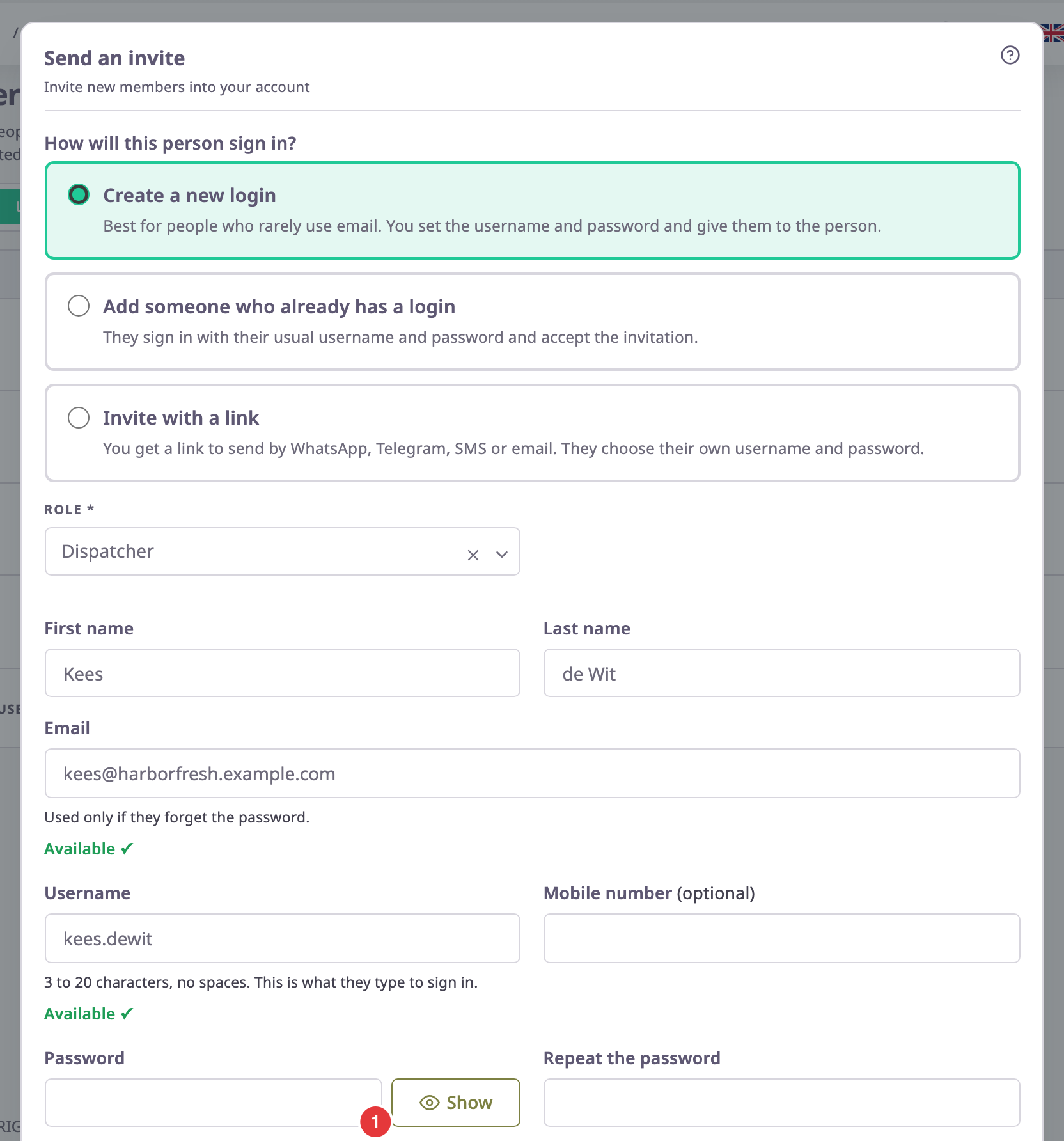
The Send an invite dialog opens.
-
Under How will this person sign in?, choose Create a new login, Add someone who already has a login or Invite with a link.
-
In Role, choose the role they get, for example Dispatcher.
-
Fill in the fields of the option you chose. See Send Invitation dialog.
-
Select the button at the bottom: Create login, Invite or Get the link.
A dialog shows what to hand over.
-
Hand over the access:
- Login created: select Copy sign-in details or Print, and give the details to the person in private. The password shows only now.
- Invitation sent: the app emailed the person. Copy link copies the link in case they cannot find the email.
- Your invitation link is ready: send the link with WhatsApp, Telegram, SMS or Email app, or select Copy link.
-
Select Done.
A person with a new login shows on the Users tab at once. An invitation shows on the Invitations tab as Pending until the person accepts it.
If the server refuses a value, the message "Nothing has been created yet" appears and the app highlights the field to fix. Fix it and send again.
¶ Invite several people by email
Use this to send email invitations to up to 20 addresses at once, all with the same role.
- In the Send an invite dialog, select Invite several people by email.
- In Emails (Add up to 20 emails)*, enter an address, for example kees@harborfresh.example.com, and press Enter.
The address becomes a tag. Repeat for more people. - In Role, choose the role.
- Select Invite.
The app shows "Invitation sent successfully". The dialog lists each address with its invitation link and a Copy link button. - Select Close.
Add one person instead takes you back to the three options.
¶ Track the invitation
Open the Invitations tab on the Users screen. Each invitation shows its status:
- Pending: sent, not answered yet;
- Accepted: the person joined, and now shows on the Users tab;
- Declined: the person turned it down;
- Expired: nobody answered within 30 days.
A pending invitation has Copy link, so you can send its link again by chat. A link without an email address shows "Anyone with the link" instead of an address.
¶ Resend an invitation
-
On the Invitations tab, find the pending, declined or expired invitation.
-
Select Resend, marked 1.
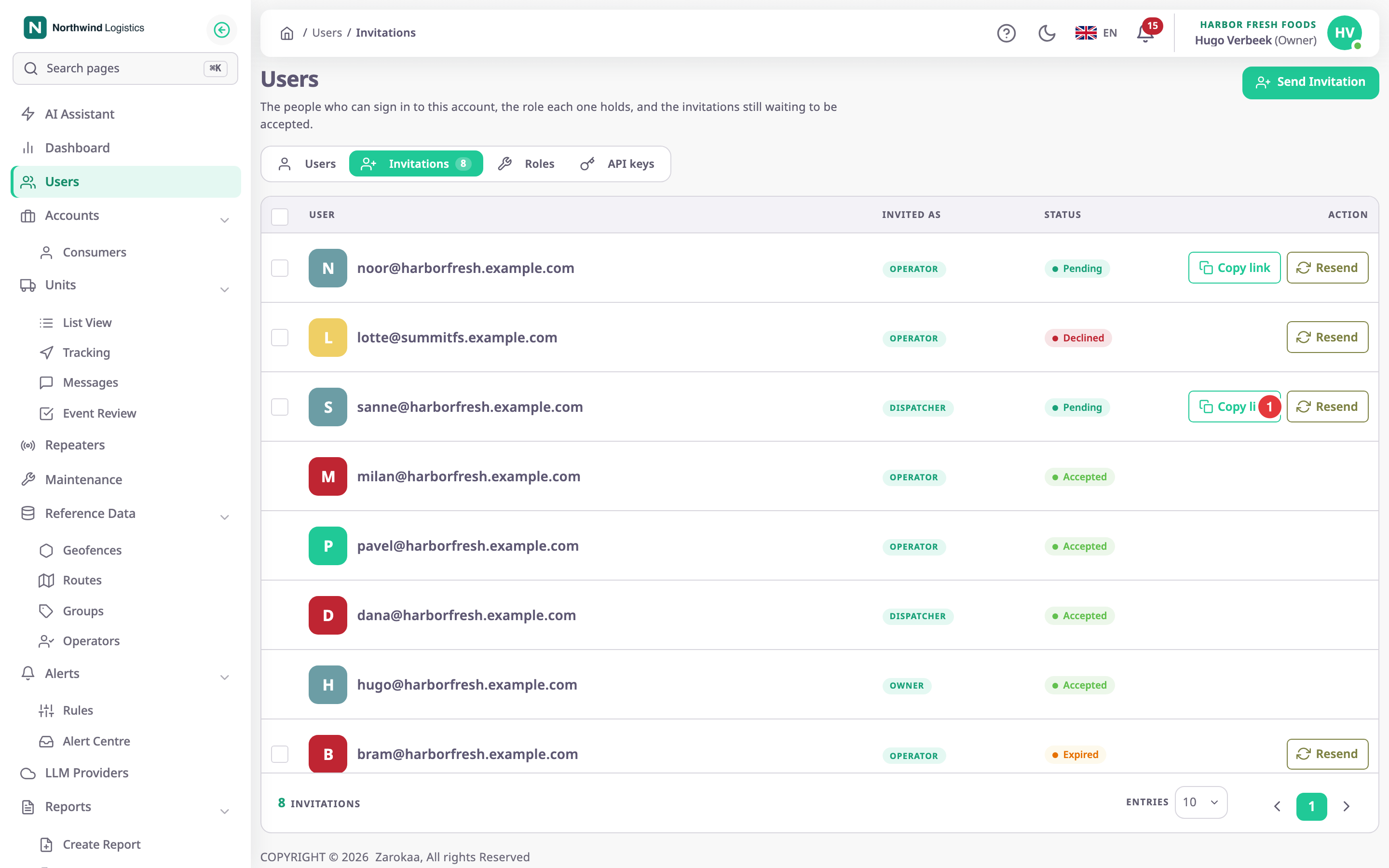
The app shows "Invitation resent successfully" and emails the same link again. An expired or declined invitation is valid for another 30 days.
An invitation link without an email address has no Resend. Copy its link and send it again yourself.
¶ What the invited person does
- With a new login, they go to the sign-in address and sign in with the username and password you gave them. If you left Ask to change the password at first sign-in on, the app asks them for a new password first.
- With an existing login, they sign in as usual and accept the invitation.
- With a link, they open it and create their user. If they already have a login, they sign in to accept instead.
See Accept an invitation and create your user and Accept or decline an invitation to another account.
If the email does not arrive, ask them to check the spam folder, or send the link by WhatsApp, Telegram or SMS. See An email from the app did not arrive, or its link does not work.