Someone in an account invited you, and you do not have a user yet. The link in the invitation email, or the link they sent you by WhatsApp, Telegram or SMS, takes you to a short form. There you create your user and join the account in one go.
¶ Before you start
- You need the invitation email or the invitation link. The email's subject is "Invite User".
- You join with the role the person who invited you chose. They can change it later.
- If you already have a user, for example in another account, see If you already have a user.
- If you got a username and password instead of a link, see If you got a username and password.
¶ Open the invitation
-
Open the invitation email, or the message with the link.
-
Select the link.
A card with a spinner shows while the app checks the invitation.
After a moment the Set up your account form opens.
If the link has expired or is not valid, the app shows "Link expired" or "Link not valid" and opens the sign-in screen. A link that someone already used does not open the form again. Ask the person who invited you for a new one.
¶ Create your user
The form shows what you are accepting: the account, your role and, for an email invitation, the invited address.
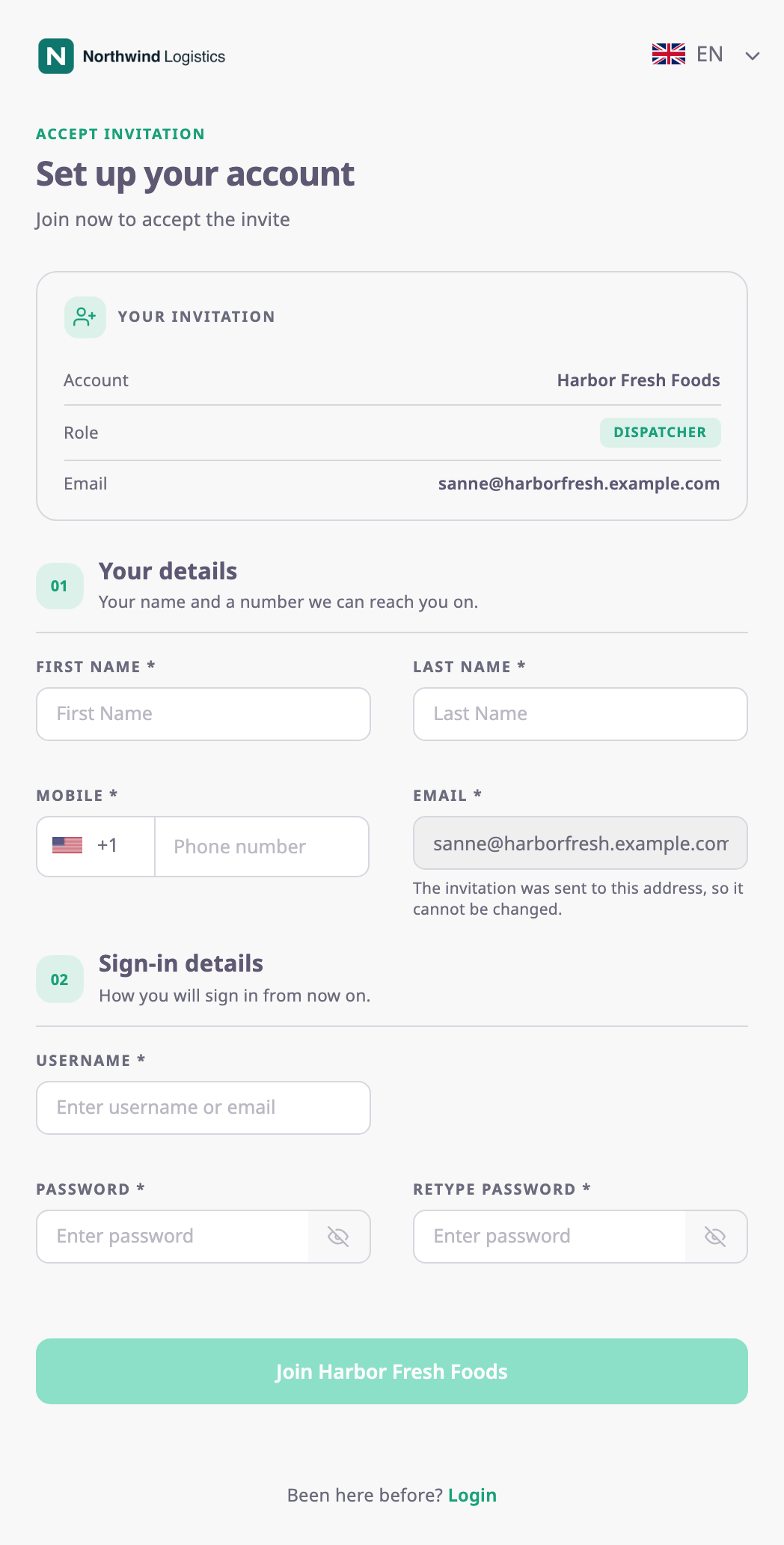
- In First Name, enter your first name.
- In Last Name, enter your last name.
- In Mobile, choose your country from the list.
- In the number box next to it, enter your mobile number.
- In Username, enter the name you want to sign in with.
If someone already has it, "Username already exists" appears under the field. - In Password, enter a password of 5 to 25 characters.
- In Retype Password, enter the password again.
- Select the button that reads "Join" and the account name, for example "Join Harbor Fresh Foods".
The message "User Account Created" appears.
For an email invitation you cannot change Email. The invitation went to that address, and it becomes your sign-in email.
For a link without an address, you enter your own email address in Email. The app uses it if you forget your password. If that address already has a login, the form says "This email already has a login. Sign in with it to accept the invitation." Select Already have a login? Sign in to accept and follow If you already have a user.
| Field | Required | What it does | Allowed values / example | Notes |
|---|---|---|---|---|
| First Name | Yes | Shows in the app and in emails. | 2 to 50 characters. Example: Sanne | — |
| Last Name | Yes | Shows with your first name. | 2 to 50 characters. Example: de Vries | — |
| Mobile | Yes | Your mobile number. | A valid number for the country you choose, that no other user has. | Shows as "Not verified" on your profile. |
| Yes | Your sign-in email. | The invited address, or for a link without one, a valid address of your own | Fixed for an email invitation. | |
| Username | Yes | The name you can sign in with instead of your email address. | 3 to 20 characters that no other user has. | The app saves it in lower case. |
| Password | Yes | Proves it is you when you sign in. | 5 to 25 characters. | Not the same as your username. |
| Retype Password | Yes | Catches typing mistakes. | The same value as Password. | — |
¶ Sign in for the first time
You do not need to sign in after you create your user. The app signs you in, joins you to the account and opens its start screen.
Next time, sign in with your username or email address and your password.
¶ If you already have a user
If the invitation went to an email address that already has a user, the link does not open the form:
- Select the link in the invitation email.
The sign-in screen opens. If another user is still signed in on this browser, the app signs them out first. - Sign in with your existing user.
The New Invite dialog shows the account and the role. - Select Accept.
The account joins the list of accounts you can switch between.
Decline turns the invitation down. You can also accept or decline from Invitations in the user menu.
A link without an address works the same way: on the sign-up form, select Already have a login? Sign in to accept. If you are already signed in when you open such a link, the app opens and offers the invitation there.
If you open an invitation link you made yourself, the app does not accept it for you. It shows "This is your own invitation link. Send it to the person who should use it."
See Accept or decline an invitation to another account.
¶ If you got a username and password
Someone may have created your login for you. They give you the sign-in address, a username and a password, on paper or in a message.
- Open the sign-in address in your browser.
- Sign in with the username and password you received.
- If the app asks for a new password, choose one.
The app keeps you on the password screen until you change it. See Change your password.