Help a customer with their team without signing in as them. From your own account you can see a child account's users and invitations. You can add people, set a user's password, and change or remove users.
¶ Before you start
- The account must be ACTIVE. Manage Users does not show for an inactive or blocked account.
- For a consumer you need Consumer Account User > Read to see users and Consumer Account User Invite > Send to invite. To set a password, you need Consumer Account User > Update. For a sub-dealer the matching Dealer Account User permissions apply. The built-in Owner role has them.
¶ Open the users of an account
-
In the side menu, select Accounts > Consumers, or Accounts > Dealers for a sub-dealer.
-
On the account's row, select Manage Users, marked 1.
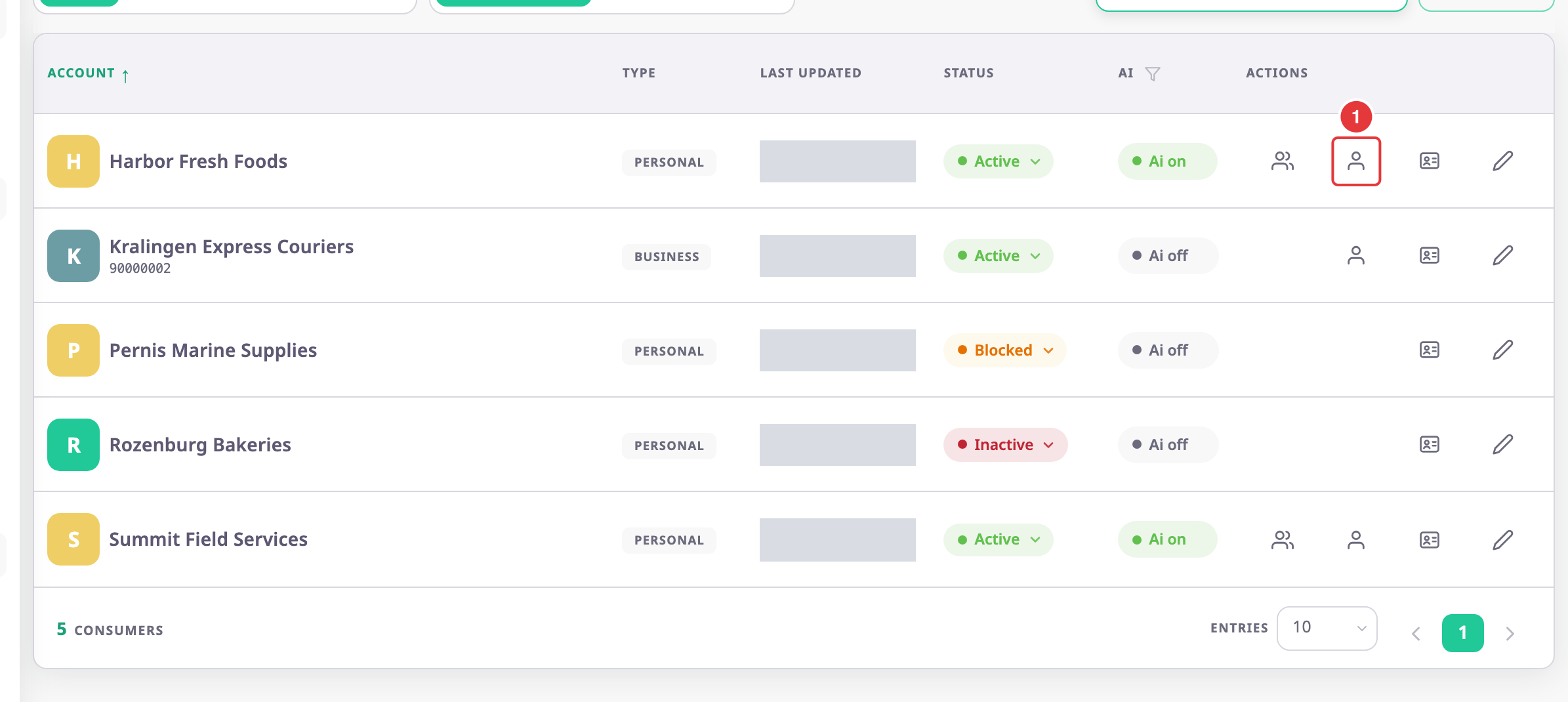
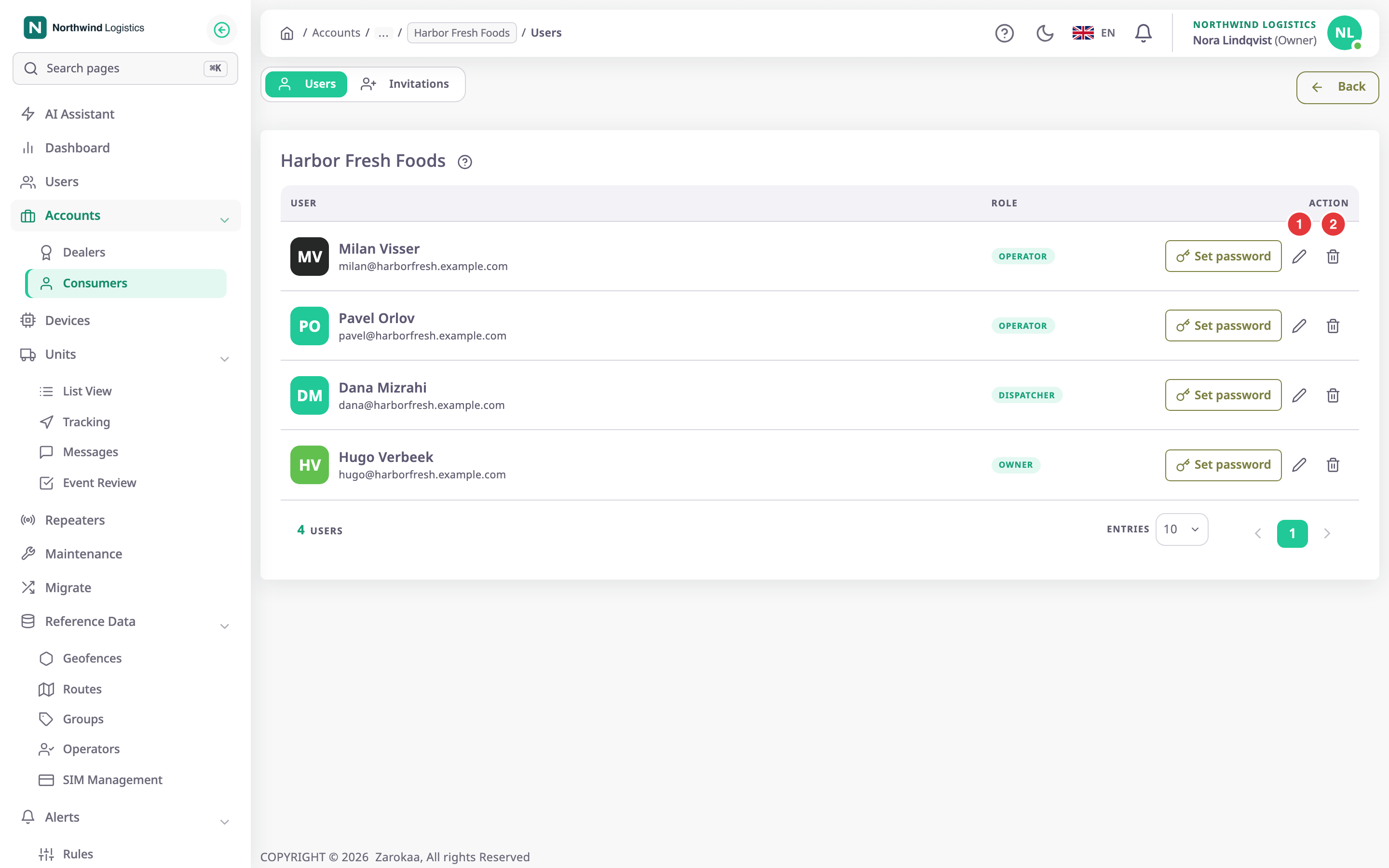
The account's Users tab opens, with every user and their role.
¶ Add a user to the account
-
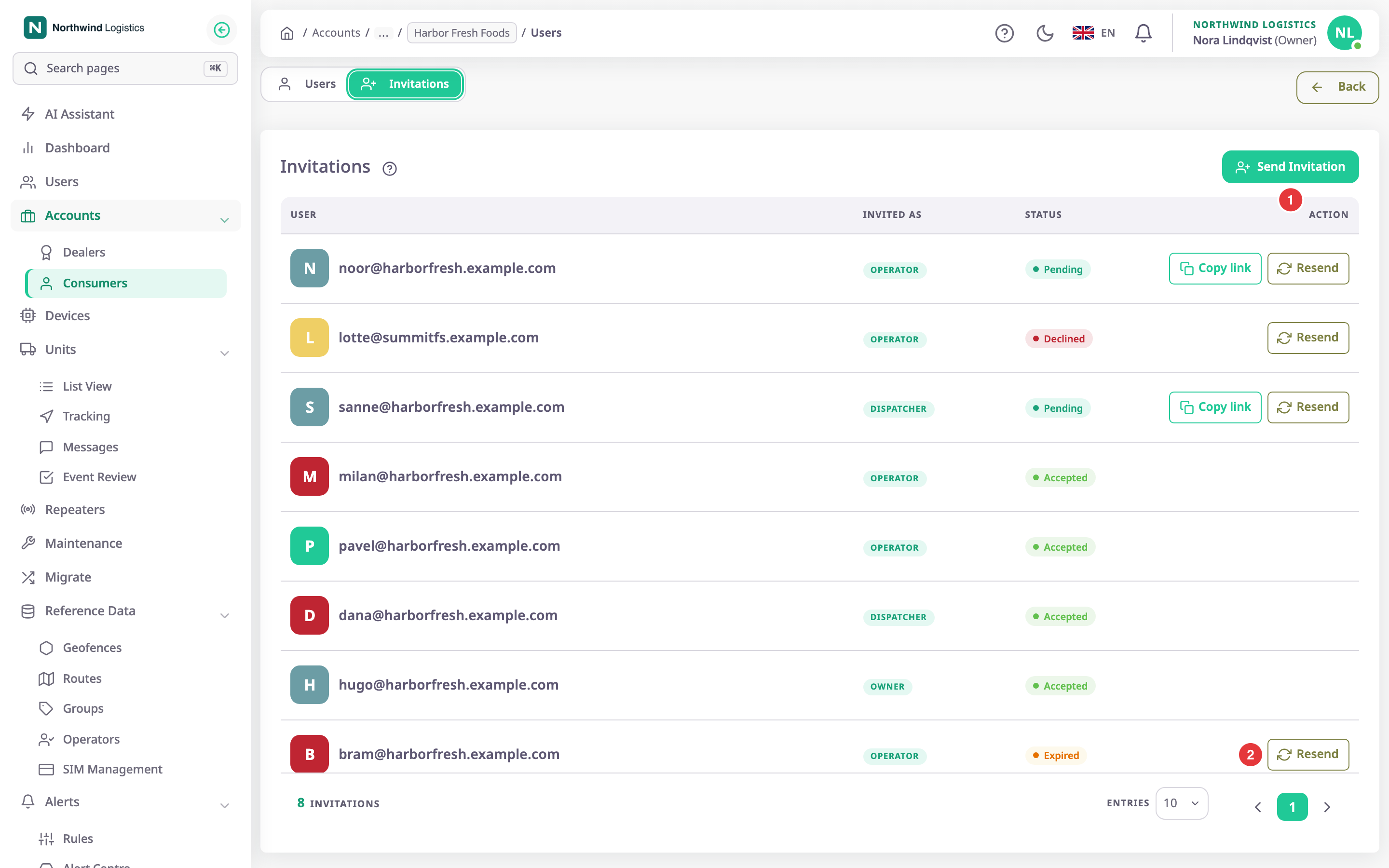
Select the Invitations tab.
-
Select Send Invitation, marked 1.
The Send an invite dialog opens.
-
Under How will this person sign in?, choose Create a new login, Add someone who already has a login or Invite with a link.
-
In Role, choose the role the person gets in that account.
-
Fill in the fields of the option you chose.
-
Select Create login, Invite or Get the link.
A dialog shows the sign-in details or the invitation link to hand over. -
Select Done.
The Send Invitation dialog reference describes every field. To invite several people by email at once, select Invite several people by email in the dialog.
¶ Resend an invitation
Use this when the owner of a new account never received or lost their invitation. You can also select Copy link on a pending invitation and send the link by WhatsApp, Telegram or SMS.
- On the Invitations tab, find the invitation. Its status is Pending, Declined or Expired.
- Select Resend, marked 2.
The app shows "Invitation resent successfully". An expired invitation is valid for another 30 days.
An invitation link made without an email address shows "Anyone with the link" and has no Resend.
¶ Set a user's password
Use this for a user who cannot receive email or has lost their password, for example a driver without a mailbox.
- On the Users tab, on the user's row, select Set password.
The Set a new password dialog opens. It warns that their old password stops working. - In Password, enter the new password, 5 to 25 characters and not the same as the username. Or select Suggest a password.
- In Repeat the password, enter it again.
- Optional: leave Ask to change the password at first sign-in on, so the user chooses their own password next time.
- Select Save password.
The app shows "New password saved for" and the user's name. The app signs the user out everywhere. - Give the new password to the user in private.
The app refuses in these cases, with a message that names the reason:
- The user also belongs to an account outside yours. Ask them to use Forgot Password? on the sign-in screen.
- The user is also an owner of your own account, or a colleague in your own account whose role is not below yours.
- It is your own user. Change your own password in your profile. See Change your password.
¶ Change or remove a user
On the Users tab:
- To give a user another role in that account, select Edit, marked 1, choose the role in Role and select Update.
- To take a user out of that account, select Delete, marked 2, and confirm with Remove.
The steps are the same as for your own account. See Change a user's role or remove a user.